Git, GitHub, and GitFlow at PhxJUG

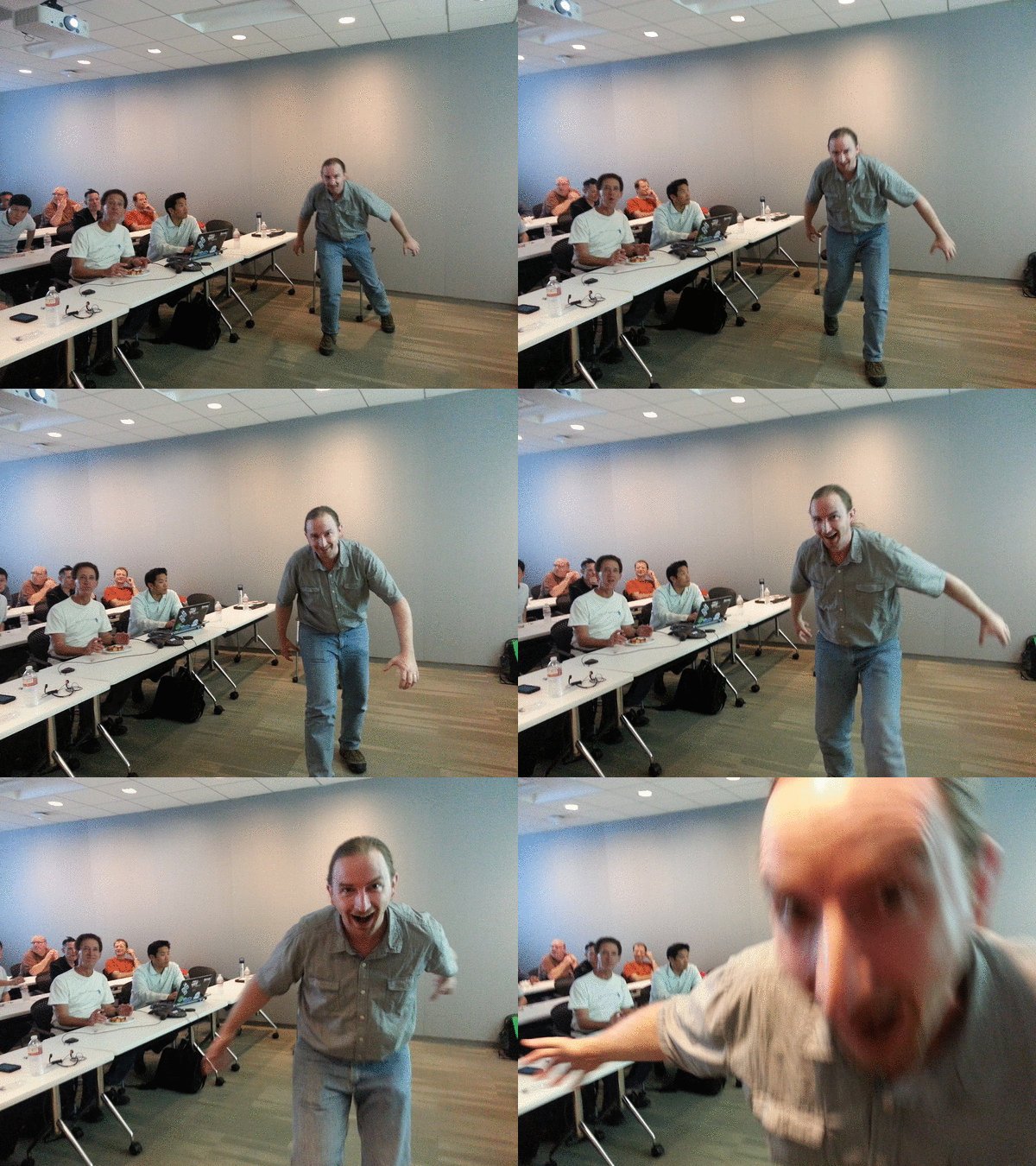
It was my pleasure to present the follow-up to Thinking in Git, "Git, GitHub, and GitFlow" at the Phoenix Java Users' Group last night.  It was a wonderful discussion.  We began by reviewing the basic methodology of Git, comparing it to SVN, and in general comparing distributed version control systems to client/server systems.  We then looked at the features and benefits of GitHub, an online Git repository and social coding community.  We then looked at GitFlow, a workflow for creating features and publishing versions.  You can download the slides here.

Backbone.JS presentation at Phoenix JavaScript Meetup

It's my pleasure to present Backbone.JS at this evening's Phoenix JavaScript Meetup.  Backbone is a great library for achieving separation of concerns in client-side code.  It is a great addition to your botique of client-side libraries, offering an a-la-carte, unopinionated framework for pub/sub eventing, declarative DOM event binding, one-way model binding, a great client REST mechanism for data persistence, and routers for "hash-bang" in-page view navigation.  You can get the slides and content here.  Most of the pages work without a server-side data store, so you can safely ignore the node content.  When you're ready to fire up the full monty, run npm install in the code directory, then node server.js to launch the server, and connect with your favorite browser.  Happy coding!

Git on-premise hosting

All else being equal, you should use GitHub (http://www.github.com/) for Git hosting.  GitHub is indeed a cloud-hosted git repository, but it's so much more than that.  It has integrated issue tracking, comment on any line of any commit (social coding), and pull request (e.g. "will you please review and pull my content").  It's truly a revolution in source control, and there's really nothing like it.

If you're forced into an on-premise solution, the natural draw is to facilitate "Git Smart HTTP" in IIS.  Git has native Apache bindings, but doesn't have anything native for IIS, so there's a plethora of home-grown answers.  The field is ripe for someone like Visual SVN to come through and make a good, GUI-driven Git webhost, though even Visual SVN is technically Apache.  You can use Git without http hosting as well (same as with SVN), though http hosted git servers are cool.  :D

I use WebGit.NET: https://github.com/otac0n/WebGitNet/wiki/Getting-Started  It has no built-in authentication, but none of these really do.  http://serverfault.com/questions/369573/what-iis-authentication-method-to-use-with-git-server-hosted-on-iis has some descent ideas on how to secure it, but all add weight to each repository access operation.  I chose instead to only bind to 127.0.0.1, so you'd need to be physically on my machine to get to the site, and if you're that far, you may as well be in my repository.  You could do something similar by exposing it only to the LAN (and by extension VPN users).

If I was to do it again, I'd investigate kudu: http://blog.davidebbo.com/2012/06/introducing-open-source-engine-behind.html and http://blog.davidebbo.com/2012/06/developing-kudu-locally-and-on-azure.html  It's what Microsoft built for Azure git deployment.  But as part of that, it has a git web engine that may be useful separately.  It has one IIS site for administration, and a second for repository access.  That's a bit weird, but it does mean you can secure them separately.

Other popular IIS-hosted Git solutions include:

- GitWebAccess: http://gitweb.codeplex.com/  I used this one for a time.

- GitDotNet: http://www.jeremyskinner.co.uk/2010/06/25/hosting-a-git-server-under-iis7-on-windows/  The author recommends against his solution. 

- GitAspx: http://www.jeremyskinner.co.uk/2010/10/19/gitaspx-0-3-available/

- Bonobo: http://www.chodounsky.net/bonobo-git-server/  I recall looking at it early on, but don't recall why I didn't like it.  Perhaps it's due a second look. 

- GitStack: http://gitstack.com/gitstack-and-other-web-servers/  If I remember correctly, this is a paid installer of some cobbled open-source tools.

- SCM Manager: http://www.helicontech.com/articles/hosting-git-svn-and-hg-mercurial-repositories-on-windows-with-iis/  It does SVN, Mercurial, and Git as a Java website. 

http://stackoverflow.com/questions/51619/how-to-setup-git-bare-http-available-repository-on-iis-machine includes some more.

Rob

Comparing version control systems: SVN, HG, and GIT

It was my pleasure to talk about version control systems: svn (subversion), hg (mercurial), and git at the NWVDNUG.  It was a great discussion about the value of DCVS (Distributed Version Control Systems) vs. Centralized Version Control Systems.  We also hit the main purposes of source control: (1) to facilitate collaboration among developers and (2) keep an audit history of the code changes.  Our purpose was a paradigm change, so our content was really driven by slides, the corresponding discussion, and the questions and answers we delved into.  You can download the slides from SVN-HG-and-GIT.zip.  Enjoy!

Rob

Git Tools for Windows

I get asked from time to time what tools I would install to use Git on Windows.  I randomly spout off a list that looks something like this.  In time, this list grew to something bigger than just a list.  It seems natural for it to evolve into a post.  In no particular order, here are installers for getting Git running on both/either client and server.  (Granted, the philosophical discussion of "client" and "server" are not technically relevant in distributed source control systems as everything is technically both, but it's good to designate one of the "clients" as a "server" by policy so there's a "canonical truth" all can go to for the latest official copy.)

Client tools:

Needed:
- mSysGit (http://code.google.com/p/msysgit/) is the base engine, and is needed to do anything git related.  Most other tools presume this is installed.  The CygWin route is a trap.  I install with these options:
   - Run Git from the Windows Command Prompt (middle option)
   - Checkout Windows-style, commit Unix-style
   - Use OpenSSH (unless you've previously installed Putty, you don't need it for Git with this option)
- Git Extensions (http://code.google.com/p/gitextensions/) is GUI tools for both Explorer and Visual Studio (and Eclipse and a few other things). Includes kdiff3, a diff tool for Windows.  Ensure you choose the same options you did for mSysGit.  (Note that by default mSysGit says "OpenSSH" and Git Extensions says "TortoisePlink".)

Optional:
- git-flow (https://github.com/nvie/gitflow/wiki/Windows) is a great workflow for git
- TortoiseGit provides icon overlays in Windows Explorer but their commit dialog "simplifies" the difference between push and commit making it absolutely useless aside from the icon overlays
- Git Source Control Provider (http://gitscc.codeplex.com/) provides icon overlays in Visual Studio

Alternatives:
- SmartGit (http://www.syntevo.com/smartgit/index.html): "smartgit" is also a protocol, making this a confusing name, client also does hg and svn
- GitHub for Windows: "simplifies" git for Windows users -- that sounds like the buzz word for "doesn't quite do it right", I have no experience with it.

Server tools:

file urls (not preferred, only works on a lan, e.g. \\server\folder\git\repo):
- mSysGit
- share the git repository on a file share

http(s):// protocol (pick one):
- (prefered) WebGit.NET (https://github.com/otac0n/WebGitNet/wiki/Getting-Started)
- Azure's http git server (https://github.com/projectkudu/kudu/): If only I had another 854 hours in the day, I'd get this running and make it the preferred mechanism. It is the newest and best supported of the bunch.
- Bonobo (http://www.chodounsky.net/bonobo-git-server/): It's abandon-ware and didn't have many features.
- GitWebAccess (http://gitweb.codeplex.com/): The website is great for configuring http access to git, but the admin interface has no authentication. Thus anyone with a web browser can reconfigure my server. Oops.
- GitStack (http://gitstack.com/): It runs on Apache, the rest of these run on IIS. Granted one can proxy Apache behind IIS: http://blog.endjin.com/2010/11/a-step-by-step-guide-to-hosting-teamcity-in-iis-7/.

git:// protocol (basically ssh://):
Guides: (follow them all -- more-or-less)
- http://www.codeproject.com/Articles/296398/Step-by-Step-Setup-Git-Server-on-Windows-with-CopS
- http://www.timdavis.com.au/git/setting-up-a-msysgit-server-with-copssh-on-windows/
Theory:
- expose mSysGit over CopSSH daemon
- GitExtensions and Putty aren't needed server-side, but may make debugging easier
- CopSSH is OpenSSHD compiled for Windows, doesn't need cygwin, daemon is built-in, can be configured for user/pass or preshared keys
- point this to the same Git repositories hosted in http(s) above and now it works both ways
Alternatives:
http://windowsgit.com/ does this setup for you, purchase for 14 euro, docs are very thin, probably better to do it yourself to learn more about what's going on under the hood.

alternatives / hosted providers:
Most of these providers host open-source projects for free, and closed-source projects for a price, and include both https:// and git://
- GitHub (https://github.com/)
- BitBucket
- CodePlex
- Pretty much any source code hosting provider

HTML5: A Primer

It was my pleasure to speak at the Phoenix Java User Group this evening, discussing HTML5.  By all accounts, it was a very fun evening, and of course, I'm sure I enjoyed it most of all.  The slides for this evening's discussion are available here.  If you're really curious about HTML5, I suggest you watch the HTML5 Camp Videos and in particular Stephanie (Sullivan) Rewis, a great HTML5 intro.

IIS Express /protocol:https

IIS Express is awesome, a great upgrade from Cassini.  It supports https, Windows Authentication, persistent sites even if Visual Studio is closed, command-line launching, it's great.  However combining them sometimes doesn't work too well.

In Cassini (Visual Web Developer) I could launch it like this:

WebDev.WebServer40.EXE /port:1234 /path:C:\path\to\site

This works wonderfully in IIS Express as well:

iisexpress.exe /port:1234 /path:C:\path\to\site

This gets awkward when moving to https.  This doesn't work:

iisexpress.exe /port:1234 /path:C:\path\to\site /protocol:https

Why doesn't it work?  Because iisexpress has no /protocol switch.  Bummer.  I flung a request for this and got a great response from Robert McMurray.

A Step Back

Robert McMurray summarizes the two modes of IIS Express nicely as "Personal Web Server Mode" (e.g. "IIS Lite") and "Application Server Mode" (e.g. "just launch this").

"Personal Web Server Mode" is a durable version of (almost all of) IIS launched in the user's context.  There's a great system tray icon that centralizes all the running sites, and the applicationHost.config file is identical to regular IIS.  One can rig Windows Authentication, HTTPS, tracing, classic ASP, the works.  (Why "almost"?  Because there's no tooling for configuration.  There are a few settings in Visual Studio, but nothing of consequence.  The perfect solution would be a way to point IIS Manager at it.  Unfortunately, typically the easiest way to configure IIS Express is to configure IIS proper, then diff their config files.  But I digress.)

"Application Server Mode" is much like Cassini was.  When you launch it, you specify /port: and /path:.  The unfortunate part of this mode is it presumes http.  To their credit, this mode is likely solely for backwards compatibility with Cassini, and Cassini didn't support https at all.

Now What?

My goal is to run IIS Express in "just do it" mode, pass in a /port: and /path:, and test my https site.  All else being equal, a /protocol: parameter to iisexpress.exe would be easiest.  In its absence, let's go hacking.  Back to Robert McMurray.  He proposes a batch file that uses appcmd.exe to rig adjustments to a cloned applicationHost.config, passing in IIS Express 8's new /apphostconfig: flag, which specifies the config to modify.  It's a bit of a long way around, but ok.  In theory it's easier than brute-forcing some XPath.

A bit of tinkering, a lot of elbow grease, and an extra quarter or two into the command-line meter, and I have a batch file that allows me to launch IIS Express like this:

iisexpress.bat /port:1234 /path:C:\path\to\site /protocol:https

The batch file takes care of shimming the difference between me using it like "Application Server Mode" and it running in "Personal Web Server Mode" (with a temporary config).  Thanks to Robert McMurray for pointing me in the right direction.

For compatibility's sake, it has a PowerShell XPath mechanism for users of IIS Express 7.x, though for those with IIS Express 8, flip over into appcmd and you're golden.

The Batch File


@echo off
setlocal enabledelayedexpansion
pushd "%~dp0"

REM because we're shifting this off the grid soon
set script_name=%0

if '%1'=='' GOTO help

:defaults
set site_port=8080
set site_protocol=http


:get_args
if '%1'=='' GOTO :args_done

set arg="%1"
set argv=%arg:/path:=%
if "%argv%"=="%arg%" goto not_path

set site_path=%argv:"=%
shift
goto get_args

:not_path

set argv=%arg:/port:=%
if "%argv%"=="%arg%" goto not_port

set site_port=%argv:"=%
shift
goto get_args

:not_port

set argv=%arg:/protocol:=%
if "%argv%"=="%arg%" goto not_https

set site_protocol=%argv:"=%
shift
goto get_args

:not_https

if '%1'=='/?' GOTO help
if '%1'=='/h' GOTO help
if '%1'=='-?' GOTO help
if '%1'=='-h' GOTO help

echo Invalid parameter: %1
goto help


:args_done


if "%site_path%"=="" GOTO no_path
if "%site_port%"=="" GOTO no_port
if not exist "%site_path%" GOTO invalid_path


:get_tempdir

set sitename=%TIME::=.%-%RANDOM%
set tempdir=%TEMP%\iisexpress-temp\%sitename%
if exist "%tempdir%" GOTO :get_tempdir
mkdir "%tempdir%"


:get_iisdir

if "%PROGRAMFILES(x86)%"=="" goto x86
set iis_dir=%PROGRAMFILES(x86)%\IIS Express
goto iis_done
:x86
set iis_dir=%PROGRAMFILES%\IIS Express
:iis_done
if not exist "%iis_dir%\iisexpress.exe" GOTO iis_missing


:setup_iis

copy "%iis_dir%\AppServer\applicationHost.config" "%tempdir%"

REM Mangle 'Development Web Site' to match what we're after

REM These need IIS Express 8:
REM "%iis_dir%\appcmd.exe" set config -section:system.applicationHost/sites /"[name='Development Web Site'].[path='/'].[path='/'].physicalPath:%site_path%" /commit:apphost /apphostconfig:%tempdir%\applicationHost.config
REM "%iis_dir%\appcmd.exe" set config -section:system.applicationHost/sites /~"[name='Development Web Site'].bindings" /commit:apphost /apphostconfig:%tempdir%\applicationHost.config
REM "%iis_dir%\appcmd.exe" set config -section:system.applicationHost/sites /+"[name='Development Web Site'].bindings.[protocol='%site_protocol%',bindingInformation='127.0.0.1:%site_port%:']" /commit:apphost /apphostconfig:%tempdir%\applicationHost.config
REM This doesn't
Powershell.exe -Command "& {$a=New-Object System.Xml.XmlDocument;$a.Load(\"%tempdir%\applicationHost.config\");$b=$a.SelectSingleNode(\"//sites/site[@id='1']//virtualDirectory\");$b.physicalPath=\"%site_path%\";$c=$a.SelectSingleNode(\"//sites/site[@id='1']//binding\");$c.protocol=\"%site_protocol%\";$c.bindingInformation=\":%site_port%:localhost\";$a.Save(\"%tempdir%\applicationHost.config\")}"


:run_iis

echo Running IIS Express: /port:%site_port% /protocol:%site_protocol% /path:%site_path%, temp-config: %tempdir%\applicationHost.config
"%iis_dir%\iisexpress.exe" /config:%tempdir%\applicationHost.config /siteid:1 /systray:false

 
:cleanup
 
rd /q /s %tempdir%


goto exit


:no_port
echo /port not specified
goto help

:no_path
echo /path not specified
goto help

:invalid_path
echo /path doesn't exist: %site_path%
exit /b 2

:iis_missing
echo can't find iisexpress.exe in %iis_dir%
exit /b 3


:help

echo %script_name% [/port:1234] [/protocol:https] "/path:C:\path\to\site\dir"
echo default: /port:8080 /protocol:http
exit /b 1

GOTO exit

:exit

popd
endlocal

exit /b

Here's hoping this solution works as well for you as it does for me.  Enjoy!

Rob

Moving to IIS Express and https

I've been asked a few times to help people move from their current use of the Web Development Server to https. This requires one also move to IIS Express as the old Web Development Server (Cassini) doesn't support https. Here's a brief tutorial on making the changes. This will allow you to test the sites using a very similar mechanism to a production deployment. We'll also discuss certificates and Fiddler concerns.

Step 1: Setup

Get your environment setup:

  1. Startup Visual Studio, and load the target project and/or solution

Step 2: Configure IIS Express

For each website you'd like to convert to IIS Express and https:

  1. In the Solution Explorer, right-click on Web project, and choose "Use IIS Express" (just under "Set as Startup Project")  NOTE: If you don't have this option, you don't have Visual Studio 2010 Service Pack 1 installed. Install VS 2010 SP 1 then retry this procedure.
  2. Go to the project properties by right-clicking the project, and choosing properties at the very bottom.
  3. In the Web tab, choose "Use Local IIS Web Server" and check "Use IIS Express". Set the Project Url as necessary.
  4. Ensure "Apply server settings to all users" is unchecked. If this is checked, these changes will be inflicted on all users of the solution including any user-specific derivations (such as the location of your solution).
  5. Enable SSL by selecting the project in the Solution Explorer, switching to the Properties window, and setting "SSL Enabled: True". You will be assigned a random port, probably localhost:44300, but you can't change that here.

Step 3: Change IIS Express SSL Ports

  1. Close Visual Studio so it doesn't get confused as we change IIS Express files.
  2. Open The IIS Express configuration file in your favorite text editor such as Notepad. It is in a path similar to C:\Users\{myusername}\Documents\IISExpress\config\applicationhost.config
  3. Scroll down to the <sites> node.
  4. Alter the bindings lines for each of the sites to include your preferred ports.
  5. Save and close the file.

Step 4: Update the Project's port if necessary

Back inside Visual Studio, we'll tweak the last few things, and we'll be ready to roll:

  1. Startup Visual Studio, and load the target project and/or solution
  2. Go into the project's settings: Solution Explorer -> right-click on project -> Properties at the very bottom -> Web tab
  3. Update the Project Url if necessary to match the details you set in applicationhost.config

Step 5: Update configuration values

If your project uses any configuration values that reference the site url or port, you'll need to update them to point to the new https url.

Step 6: Try it Out

We're ready to roll:

  1. Debug the target project / solution
  2. In your browser, go to the https url you specified (example: https://localhost:44300/)

It works, but you'll quickly discover failures because the cert isn't trusted.

You'll also notice that IIS Express binds specifically to "localhost:port#", and doesn't listen on "localhost.:port#". (Note the dot in the second url.) Adding this dot is a great tool for debugging with fiddler as it makes the browser use DNS to resolve the site, which happily makes it use the configured proxy – Fiddler. Without this dot, it's really easy to make web requests and get absolutely nowhere. Unfortunately, this no longer works with IIS Express. Sadly, you'll need to remove the dot.

Step 7: Trust IIS Express Certificate in your chosen browser(s)

Unfortunately, Chrome will use the local certificate store, but has no way to alter the local certificate store, so we must use Internet Explorer to configure the certificate trust. These steps are pulled from http://stackoverflow.com/questions/681695/what-do-i-need-to-do-to-get-internet-explorer-8-to-accept-a-self-signed-certific and http://productforums.google.com/forum/#!topic/chrome/bds-Ao9LigA. The former (quoted here) shows you how to get IE (and thus .NET) to trust the self-signed certificate, the latter, targeted towards Chrome, puts the certificate in "Third-party Certificate Store" instead of "Trusted Root Certification Authorities".

How to make IE8 trust a self-signed certificate in 20 irritating steps: (source: http://stackoverflow.com/questions/681695/what-do-i-need-to-do-to-get-internet-explorer-8-to-accept-a-self-signed-certific)

  1. Browse to the site whose certificate you want to trust.
  2. When told "There is a problem with this website's security certificate.", choose "Continue to this website (not recommended)."
  3. Select Tools->Internet Options.
  4. Select Security->Trusted sites->Sites.
  5. Confirm the URL matches, and click "Add" then "Close".
  6. Close the "Internet Options" dialog box with either "OK" or "Cancel".
  7. Refresh the current page.
  8. When told "There is a problem with this website's security certificate.", choose "Continue to this website (not recommended)."
  9. Click on "Certificate Error" at the right of the address bar and select "View certificates".
  10. Click on "Install Certificate...", then in the wizard, click "Next".
  11. On the next page select "Place all certificates in the following store".
  12. Click "Browse", select "Trusted Root Certification Authorities", and click "OK".
  13. Back in the wizard, click "Next", then "Finish".
  14. If you get a "Security Warning" message box, click "Yes".
  15. Dismiss the message box with "OK".
  16. Select Tools->Internet Options.
  17. Select Security->Trusted sites->Sites.
  18. Select the URL you just added, click "Remove", then "Close".
  19. Now shut down all running instances of IE, and start up IE again.
  20. The site's certificate should now be trusted.

After this procedure is done, Chrome will note that the url is "localhost", that it isn't routable across the internet, and thus it is impossible for a trusted certificate store to issue such a certificate. It will also note that the certificate's domain and page's domain match, and will no longer prompt you to "proceed anyway".

Step 8: (Optional, Advanced) Use IIS instead of IIS Express

Getting IIS Express to start when you begin debugging and stop when you end debugging is very, very handy. But there are times when you'll want to use the site but don't want to have to launch Visual Studio first – e.g. to demo the project to a potential client. In that case, you can use the full IIS 7.5 installed in Windows instead of IIS Express with these modifications:

Configure the project to use IIS:

  1. Right-click on the project in Visual Studio, choose properties, switch to the Web tab, and uncheck "Use IIS Express".
  2. Change the Project Url to use your chosen IIS url.

Install IIS 7.5 on Windows 7 (if it isn't there already):

  1. Start -> Control Panels.
  2. On the left, choose "Turn Windows Features on or off".
  3. Inside Internet Information Services, inside Web Management Tools, check on IIS Management Console.
  4. Inside Internet Information Services, inside World Wide Web Services, check on at least ASP and ASP.NET.
  5. Troll through the other settings inside Internet Information Services, checking on anything that looks interesting.
  6. Ensure WebDAV is /NOT/ installed: Internet Information Services -> World Wide Web Services -> Common HTTP Features -> WebDAV Publishing to off. You likely don't need it, and it's a great security hole.
  7. Ensure FTP is /NOT/ installed: Internet Information Services -> FTP must be off. Same thing, reduce the attack service.

Configure IIS:

  1. Start -> Administrative Tools -> Internet Information Services. NOTE: If you don't have this option, you need to first install IIS.
  2. Right click on Sites, and choose Add Website.
  3. Add the website details.
  4. Click Application Pools, and ensure the app pool settings are appropriate to your use.
  5. If any of the settings for the App Pool aren't as specified, choose the app pool, click "Basic Settings…" on the right, and alter as needed.

Both Forms Authentication and Basic Authentication

The question was asked:

Given an asp.net application that in itself uses Forms Authentication, what is the best practice for securing a public-facing demo site such that nobody who is not in the "in crowd" can see the site at all?

My answer was pretty cool, and I wanted to remember it someday when I had a similar question.  Up-vote it if you too think it's cool:

Typically the "demo sites" are secured with Basic Authentication.  e.g. return a 401 to the browser with a basic authentication challenge that it turns into prompting for credentials.  In theory, once this is done, the rest of the site is just regular stuff -- forms auth when needed.

The difficulty with this approach in ASP.NET comes in the fact that the default FormsAuthenticationProvider is hard-wired to interpret a 401 as "need to 302 to the login page."  With that as a premise, getting both Forms Authentication and Basic Authentication to happen simultaneously is a challenge.

Also, the Basic Authentication built-in to IIS uses Windows as the authentication store (Active Directory or local windows accounts.)  Getting it to use a different credential store is not easy to do "in the box".

http://custombasicauth.codeplex.com/ is a project I've been watching that is quite intriguing.  It provides a custom Basic Authentication provider that allows you to rig up Basic Authentication from a different provider store.  Pop open the source to http://custombasicauth.codeplex.com/SourceControl/changeset/view/53965#183990 and http://custombasicauth.codeplex.com/SourceControl/changeset/view/53965#183995 and see that they're just extracting the Base64-encoded header, and comparing it to an ASP.NET Membership Provider.  With that as a premise, you could rig up a similar HttpModule to compare the header data to a user/pass stored in AppSettings, and include the module in your demo site.  The magic sauce is that you don't set the 401 status on Authenticate, you do so at EndRequest -- after the FormsAuthenticationModule has finished it's "401 to 302 to login page".  The only down-side is the <location> tags have to be used by Forms Auth or by Basic Auth, but not both.  If the use-case is truly "secure the entire demo site", then it's sufficient to code the Basic Auth module to "just do it all".  I'm about 2/3 of the way doing exactly this.  When I'm done, I'll likely post it to GitHub as it's turning out pretty cool.  Alas, the technique isn't that hard, and perhaps the description of the solution is sufficient.

And if you really want a hands-off, no-code solution, install http://custombasicauth.codeplex.com/.  It even gives you pretty config windows in IIS.  :D 

Elmah: return the ErrorId from Signal.Raise()

ELMAH is an awesome error logging framework for ASP.NET.  It provides both an elegant way of capturing errors, and an elegant way of displaying them later.  It's available as a NuGet package, and is both Web Forms and MVC friendly.

Generally, Elmah "just works" and you can walk away happy as a clam.  But there's times where you want to do custom error logging.  The general solution is to do something like this:

ErrorSignal.FromContext(HttpContext.Current).Raise(ex, HttpContext.Current);

The up-side is you can log anything you want then gently recover.  The down-side is you can't get the logged ErrorId.  Granted, based on your Elmah filters, maybe it wasn't logged.  But if it was and that location stores an id (see Elmah's SqlErrorLog) then it'd be really nice for Raise() to return that Id.

The problem is elegantly described http://code.google.com/p/elmah/issues/detail?id=148 and http://stackoverflow.com/questions/7895271/getting-the-id-of-an-error-in-elmah-after-calling-raise/7902138 with nearly identical results: "You can't get there from here, don't bother."

The closest work-around is to listen to the ErrorLogModule's Logged event, and shim it to where you need it:

void ErrorLog_Logged(object sender, ErrorLoggedEventArgs args) {
     string key = args.Entry.Id;
     // stash this somewhere
}

Then after the .Raise() call, you pull it from the stash location.  HttpRequest.Items is request-specific cache, and provides a descent stash location.  But this is at best a fragile hack.

As any good programmer would say, this is a problem that can easily be solved with code.  I downloaded the Elmah source, made some quick adjustments, and posted the solution to http://code.google.com/p/elmah/issues/detail?id=148#c3.  On the off chance that post gets deleted and to add more visibility to the simplicity to the solution, here's the patch file that shows the (not kidding) 14 lines that made this feature a reality.  If you like this patch too, log into Elmah's project site and "me too" comment to the ticket.


diff -r 2482ebd0a4ae src/Elmah/ErrorLogModule.cs
--- a/src/Elmah/ErrorLogModule.cs    Tue May 01 19:31:20 2012 +0200
+++ b/src/Elmah/ErrorLogModule.cs    Wed May 02 16:13:53 2012 -0700
@@ -84,15 +84,21 @@
 
         protected virtual void OnErrorSignaled(object sender, ErrorSignalEventArgs args)
         {
-            LogException(args.Exception, args.Context);
+            string id = LogException(args.Exception, args.Context);
+            if (!string.IsNullOrEmpty(id)) {
+                args.ErrorId = id;
+            }
         }
 
         /// <summary>
         /// Logs an exception and its context to the error log.
         /// </summary>
+        /// <returns>ErrorId, may be null since not all errors are logged</returns>
 
-        protected virtual void LogException(Exception e, HttpContextBase context)
+        protected virtual string LogException(Exception e, HttpContextBase context)
         {
+            string id = null;
+
             if (e == null)
                 throw new ArgumentNullException("e");
 
@@ -105,7 +111,7 @@
             OnFiltering(args);
            
             if (args.Dismissed)
-                return;
+                return id;
            
             //
             // Log away...
@@ -118,7 +124,7 @@
                 Error error = new Error(e, context);
                 ErrorLog log = GetErrorLog(context);
                 error.ApplicationName = log.ApplicationName;
-                string id = log.Log(error);
+                id = log.Log(error);
                 entry = new ErrorLogEntry(log, id, error);
             }
             catch (Exception localException)
@@ -137,6 +143,8 @@
 
             if (entry != null)
                 OnLogged(new ErrorLoggedEventArgs(entry));
+
+            return id;
         }
 
         /// <summary>
diff -r 2482ebd0a4ae src/Elmah/ErrorSignal.cs
--- a/src/Elmah/ErrorSignal.cs    Tue May 01 19:31:20 2012 +0200
+++ b/src/Elmah/ErrorSignal.cs    Wed May 02 16:13:53 2012 -0700
@@ -46,15 +46,19 @@
             Raise(e, null);
         }
 
-        public void Raise(Exception e, HttpContextBase context)
+        public string Raise(Exception e, HttpContextBase context)
         {
             if (context == null)
                 context = new HttpContextWrapper(HttpContext.Current);
 
             ErrorSignalEventHandler handler = Raised;
 
+            ErrorSignalEventArgs args = new ErrorSignalEventArgs(e, context);
+
             if (handler != null)
-                handler(this, new ErrorSignalEventArgs(e, context));
+                handler(this, args);
+
+            return args.ErrorId;
         }
 
         public static ErrorSignal FromCurrentContext()
@@ -154,6 +158,11 @@
             get { return _context; }
         }
 
+        /// <summary>
+        /// When you handle the signal, update this with the resulting ErrorId (if any)
+        /// </summary>
+        public string ErrorId { get; set; }
+
         public override string ToString()
         {
             return Mask.EmptyString(Exception.Message, Exception.GetType().FullName);
diff -r 2482ebd0a4ae src/Elmah/ErrorTweetModule.cs
--- a/src/Elmah/ErrorTweetModule.cs    Tue May 01 19:31:20 2012 +0200
+++ b/src/Elmah/ErrorTweetModule.cs    Wed May 02 16:13:53 2012 -0700
@@ -129,15 +129,20 @@
 
         protected virtual void OnErrorSignaled(object sender, ErrorSignalEventArgs args)
         {
-            LogException(args.Exception, args.Context);
+            string id = LogException(args.Exception, args.Context);
+            if (!string.IsNullOrEmpty(id)) {
+                args.ErrorId = id;
+            }       
         }
 
         /// <summary>
         /// Logs an exception and its context to the error log.
         /// </summary>
 
-        protected virtual void LogException(Exception e, HttpContextBase context)
+        protected virtual string LogException(Exception e, HttpContextBase context)
         {
+            string id = null;
+
             if (e == null)
                 throw new ArgumentNullException("e");
 
@@ -150,7 +155,7 @@
             OnFiltering(args);
            
             if (args.Dismissed)
-                return;
+                return id;
 
             //
             // Tweet away...
@@ -240,6 +245,8 @@
 
                 OnWebPostError(request, localException);
             }
+
+            return id;
         }
 
         private void OnWebPostError(WebRequest request, Exception e)